> ## Documentation Index
> Fetch the complete documentation index at: https://ikun.mintlify.site/llms.txt
> Use this file to discover all available pages before exploring further.
# 生产应用
您的生产应用运行在 AWS 上,其资源定义在 `workspace/prd_resources.py` 文件中。本指南将展示如何:
1. [构建生产镜像](#build-your-production-image)
2. [更新 ECS 任务定义](#ecs-task-definition)
3. [更新 ECS 服务](#ecs-service)
## 工作空间设置
`workspace/settings.py` 文件中的 `WorkspaceSettings` 对象定义了工作空间应用和资源共用的设置。
## 构建生产镜像
默认情况下,您的应用使用 `agno` 镜像。若要使用您自己的镜像:
* 在 `ECR` 中创建一个仓库并进行身份验证,或者使用 `Dockerhub`。
* 打开 `workspace/settings.py` 文件。
* 将 `image_repo` 更新为您的镜像仓库。
* 设置 `build_images=True` 和 `push_images=True`。
* 可选 - 设置 `build_images=False` 和 `push_images=False` 以使用仓库中现有的镜像。
### 创建 ECR 仓库
要使用 ECR,请在推送镜像之前 **创建镜像仓库并完成 ECR 身份验证**。
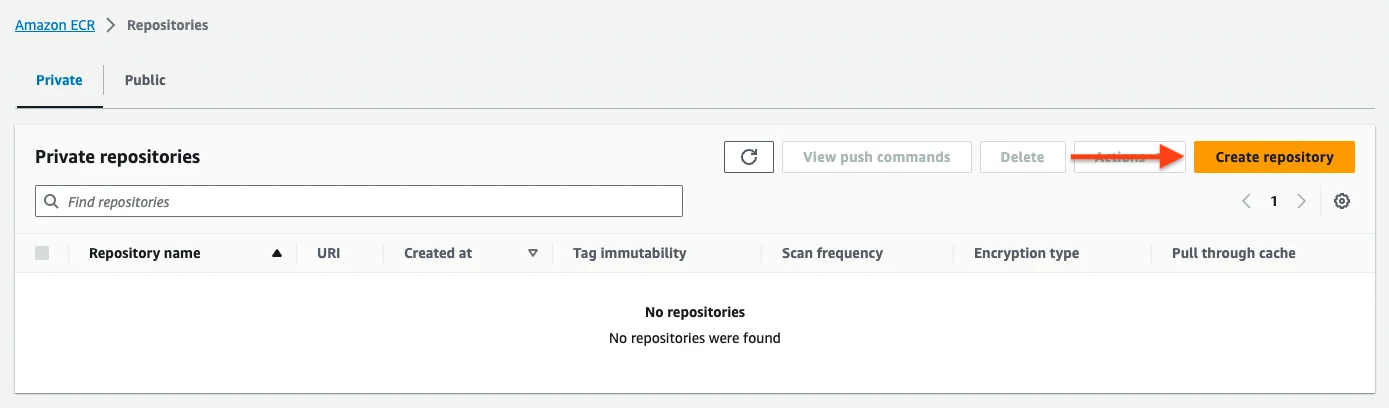
**1. 在 ECR 中创建镜像仓库**
仓库名称应与 `ws_name` 匹配。也就是说,如果使用默认工作空间名称,仓库名称将是 `ai`。
 **2. 验证 ECR 身份**
```bash Authenticate with ECR theme={null}
aws ecr get-login-password --region [region] | docker login --username AWS --password-stdin [account].dkr.ecr.[region].amazonaws.com
```
您也可以使用一个辅助脚本来避免运行完整的命令。
运行脚本前,请更新脚本中的 ECR 仓库信息。
```bash Mac theme={null}
./scripts/auth_ecr.sh
```
### 更新 `WorkspaceSettings`
```python workspace/settings.py theme={null}
ws_settings = WorkspaceSettings(
...
# 目标区域的子网 ID
subnet_ids=["subnet-xyz", "subnet-xyz"],
# -*- 镜像设置
# 镜像仓库
image_repo="your-image-repo",
# 本地构建镜像
build_images=True,
# 构建后推送镜像
push_images=True,
)
```
`image_repo` 定义了您的镜像仓库。
* 如果使用 dockerhub,它将类似于 `agno`。
* 如果使用 ECR,它将类似于 `[ACCOUNT_ID].dkr.ecr.us-east-1.amazonaws.com`
### 构建新镜像
使用以下命令构建生产镜像:
```bash terminal theme={null}
ag ws up --env prd --infra docker --type image
```
```bash shorthand theme={null}
ag ws up -e prd -i docker -t image
```
要强制重新构建镜像,请使用 `--force` 或 `-f` 标志。
```bash terminal theme={null}
ag ws up --env prd --infra docker --type image --force
```
```bash shorthand theme={null}
ag ws up -e prd -i docker -t image -f
```
由于生产环境中唯一的 docker 资源是 docker 镜像,您也可以使用以下命令:
```bash Build Images theme={null}
ag ws up prd:docker
```
```bash Force Build Images theme={null}
ag ws up prd:docker -f
```
## ECS 任务定义
如果您更新了镜像、CPU、内存或环境变量,请使用以下命令更新任务定义:
```bash terminal theme={null}
ag ws patch --env prd --infra aws --name td
```
```bash shorthand theme={null}
ag ws patch -e prd -i aws -n td
```
## ECS 服务
要重新部署生产应用,请使用以下命令更新 ECS 服务:
```bash terminal theme={null}
ag ws patch --env prd --infra aws --name service
```
```bash shorthand theme={null}
ag ws patch -e prd -i aws -n service
```
**2. 验证 ECR 身份**
```bash Authenticate with ECR theme={null}
aws ecr get-login-password --region [region] | docker login --username AWS --password-stdin [account].dkr.ecr.[region].amazonaws.com
```
您也可以使用一个辅助脚本来避免运行完整的命令。
运行脚本前,请更新脚本中的 ECR 仓库信息。
```bash Mac theme={null}
./scripts/auth_ecr.sh
```
### 更新 `WorkspaceSettings`
```python workspace/settings.py theme={null}
ws_settings = WorkspaceSettings(
...
# 目标区域的子网 ID
subnet_ids=["subnet-xyz", "subnet-xyz"],
# -*- 镜像设置
# 镜像仓库
image_repo="your-image-repo",
# 本地构建镜像
build_images=True,
# 构建后推送镜像
push_images=True,
)
```
`image_repo` 定义了您的镜像仓库。
* 如果使用 dockerhub,它将类似于 `agno`。
* 如果使用 ECR,它将类似于 `[ACCOUNT_ID].dkr.ecr.us-east-1.amazonaws.com`
### 构建新镜像
使用以下命令构建生产镜像:
```bash terminal theme={null}
ag ws up --env prd --infra docker --type image
```
```bash shorthand theme={null}
ag ws up -e prd -i docker -t image
```
要强制重新构建镜像,请使用 `--force` 或 `-f` 标志。
```bash terminal theme={null}
ag ws up --env prd --infra docker --type image --force
```
```bash shorthand theme={null}
ag ws up -e prd -i docker -t image -f
```
由于生产环境中唯一的 docker 资源是 docker 镜像,您也可以使用以下命令:
```bash Build Images theme={null}
ag ws up prd:docker
```
```bash Force Build Images theme={null}
ag ws up prd:docker -f
```
## ECS 任务定义
如果您更新了镜像、CPU、内存或环境变量,请使用以下命令更新任务定义:
```bash terminal theme={null}
ag ws patch --env prd --infra aws --name td
```
```bash shorthand theme={null}
ag ws patch -e prd -i aws -n td
```
## ECS 服务
要重新部署生产应用,请使用以下命令更新 ECS 服务:
```bash terminal theme={null}
ag ws patch --env prd --infra aws --name service
```
```bash shorthand theme={null}
ag ws patch -e prd -i aws -n service
```
如果您 **只** 重新构建了镜像,则无需更新任务定义,只需更新服务即可拾取新镜像。